Add a second mailbox and switch between them
scomm.ai can hold more than one mailbox. Add a second Gmail, Outlook, or Hotmail account, then switch accounts from the sidebar without leaving the app. Use a test address such as alex.demo@scomm.ai only in examples — connect your own accounts for real mail.
Open Switch account
In the left sidebar, open your account menu. Add account appears above all mailboxes. Choose Add account to link another inbox, or select a mailbox below to switch.
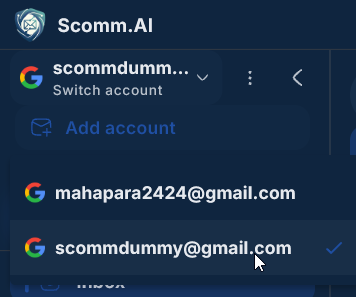
Add account sits above all accounts in the switch menu. Choose Add account
Select Add account at the top of the list to open the Add Account window.
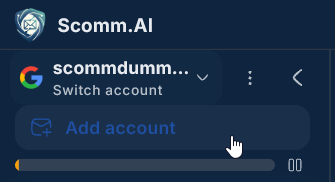
Choose Add account under Switch account. Sign in to the second mailbox
In Add Account, enter the address and choose Continue with Google, Microsoft, or IMAP. Complete sign-in so scomm.ai can sync that inbox on this device.
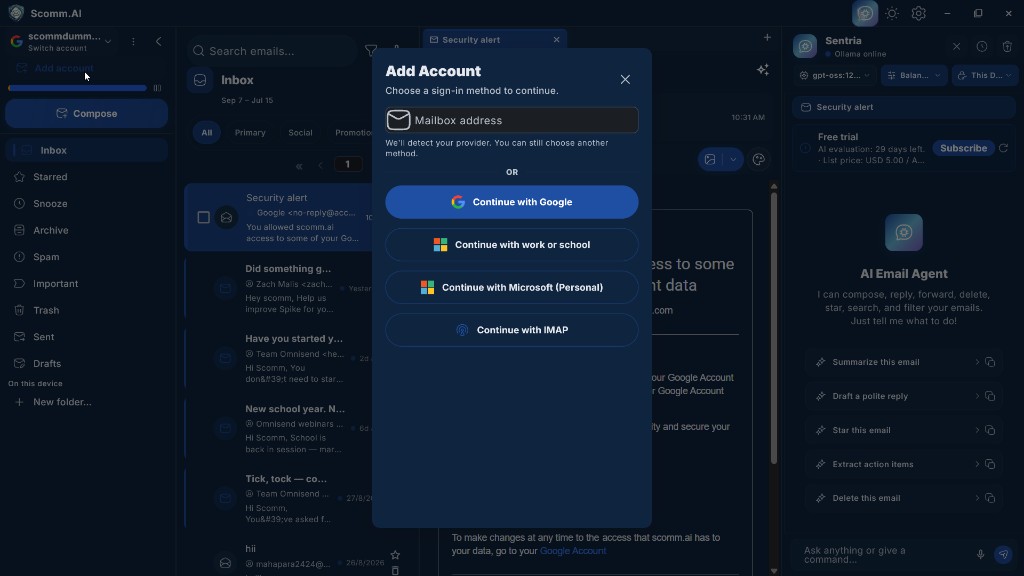
Pick a provider to connect the second mailbox. Wait for the first sync
After the account is linked, scomm.ai starts syncing mail. Larger mailboxes can take longer the first time. You can keep using your first mailbox while sync runs.
Switch between mailboxes
Open Switch account again. Pick the mailbox under Add account. The checkmark marks the active account. Folders (Inbox, Sent, Drafts, and the rest) update to that account.
Compose from the right account
Before you send, confirm the active account in the sidebar. New mail from Compose is sent from the mailbox you currently have selected.