Connecting your email account
Link your email so scomm.ai can sync your inbox on this device. You can connect Google, Microsoft work or school, Microsoft personal, or IMAP. Examples use alex.demo@scomm.ai — connect your own address for real mail.
Open Switch account
In the left sidebar, select your current account. The menu shows Switch account. Add account sits above all of your mailboxes — use it to link another inbox, or pick an account below to switch.
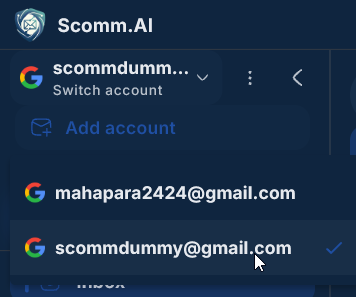
Add account appears above all mailboxes in Switch account. Choose Add account
From that same menu, choose Add account (above the account list) to open the Add Account window.
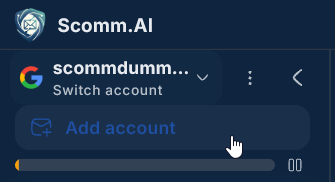
Choose Add account above your mailbox list. Enter your mailbox address
In the Add Account window, type your mailbox address. scomm.ai detects your provider when it can. You can still pick another sign-in method below.
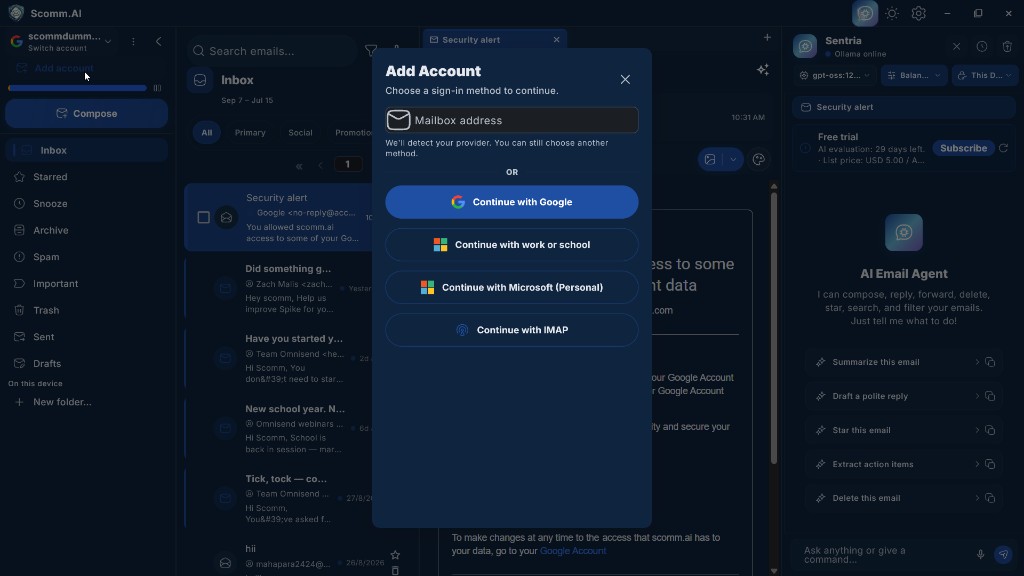
Add Account — continue with Google, Microsoft, or IMAP. Continue with your provider
Choose Continue with Google, Continue with work or school, Continue with Microsoft (Personal), or Continue with IMAP. Complete the sign-in or permission steps so scomm.ai can access that mailbox.
Wait for the first sync
After the account is linked, scomm.ai starts syncing mail. Larger mailboxes can take longer the first time. You can keep using the app while sync runs.
Switch to another mailbox
Open Switch account again. Your mailboxes appear under Add account. Select the one you want — a checkmark shows the active account. Folders and Compose use that mailbox.