Set up Ollama for Sentria
Sentria is the AI Email Agent built into scomm.ai. It connects to a local Ollama server on your computer — email content stays on your device. Complete these steps so the status shows Ollama online.
Install Ollama
Download Ollama from the official site for your operating system (Windows, macOS, or Linux). Run the installer and finish setup until Ollama is running in the background.
Start the local server
Confirm Ollama is listening. By default Sentria expects the server at http://127.0.0.1:11434. Leave Ollama running while you use scomm.ai.
Pull a model
In a terminal, pull a model you want Sentria to use (for example: ollama pull llama3:latest or ollama pull gemma3:4b). Wait until the download finishes before continuing.
Open Set up Ollama from Sentria
Open Sentria chat in scomm.ai. At the top, open the device menu (This Device). Under My devices, choose Set up Ollama if you still need to connect or reconfigure the local server.
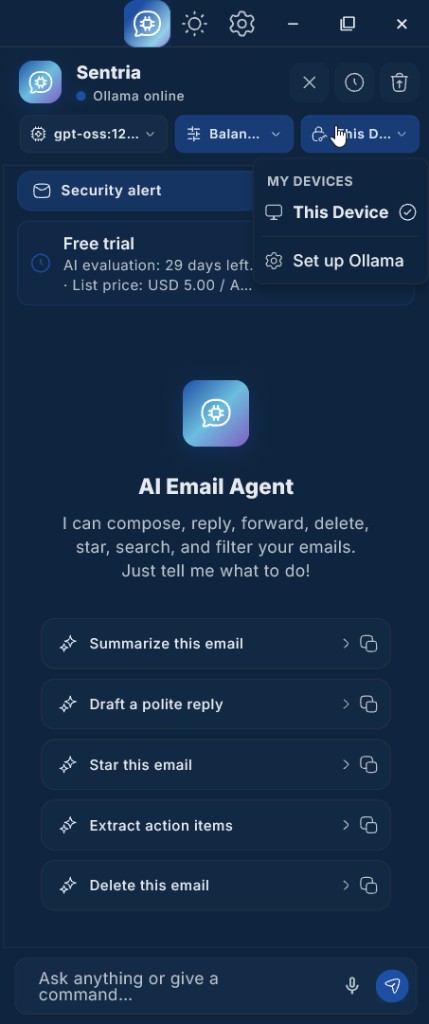
Open This Device → Set up Ollama to connect your local server. Confirm Ollama online
When the connection works, the Sentria header shows Ollama online with a blue status dot. You can then pick a model and start chatting.