Use Sentria chat
Sentria chat is the AI Email Agent panel in scomm.ai. You can compose, reply, forward, delete, star, search, and filter mail with natural-language commands — or tap a suggested action.
Open Sentria chat
From the mailbox Sentria menu, choose Open Sentria chat. The header should show Ollama online when your local server is connected.
Choose a model
Open the model menu at the top (gear icon). Pick a model such as llama3:latest or gemma3:4b, or choose Refresh models if you recently pulled a new one in Ollama.
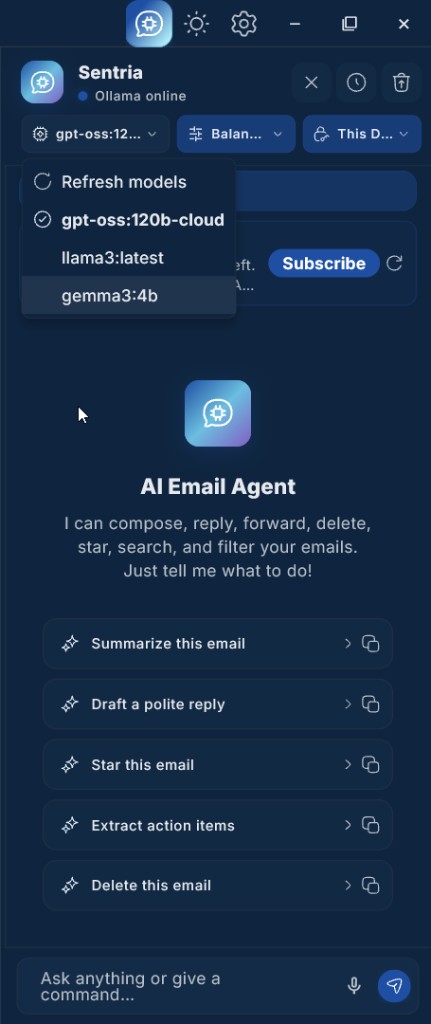
Select the Ollama model Sentria should use. Set the reply tone
Open the tone menu next to the model. Choose Concise, Balanced, or Expressive so drafts and replies match how you want to sound.
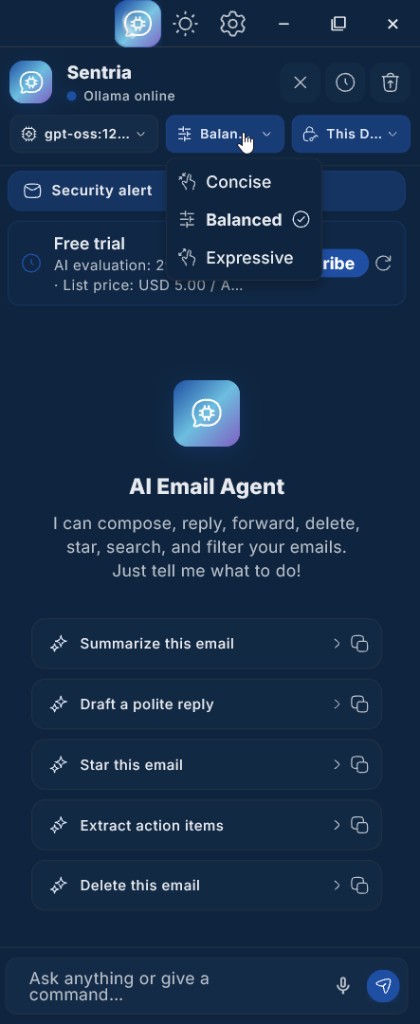
Pick Concise, Balanced, or Expressive for Sentria’s writing style. Confirm This Device
Open the device menu and keep This Device selected when you want Sentria to use the Ollama server on the machine you are using. Choose Set up Ollama if you need to reconnect.
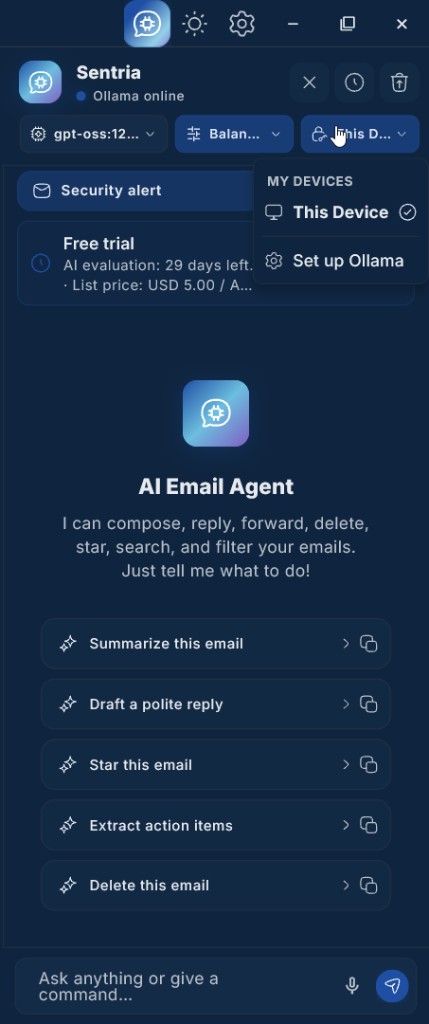
My devices — use This Device or open Set up Ollama. Try a suggested action
Under AI Email Agent, tap a suggestion such as Summarize this email, Draft a polite reply, Star this email, Extract action items, or Delete this email. You can also type your own request in Ask anything or give a command… and press Send.
Review before confirming
Check every draft or action Sentria proposes before you send, star, or delete. AI can make mistakes.